
Product Upsell Popups: 10 Layouts That Actually Increase AOV
Discover 10 upsell popup layouts proven to boost average order value. From classic modals to countdown urgency, learn which layout works best for your Shopify store.
Product Upsell Popups: 10 Layouts That Actually Increase AOV
Getting more customers is expensive. Getting more revenue from existing customers is cheap.
That's why smart Shopify stores focus on Average Order Value (AOV) as much as conversion rate. A 10% AOV increase on 1,000 orders at $100 average = $10,000 extra revenue. No additional traffic required.
Product upsell popups are the fastest way to lift AOV. Show relevant products at the right moment, make adding easy, and watch order values climb.
But here's what most stores get wrong: they use generic "You might also like" sections that blend into the page. Upsell popups demand attention. They interrupt the flow just long enough to suggest something valuable.
This guide covers 10 distinct upsell popup layouts—when to use each, and how to set them up for maximum impact.
Why upsell popups work better than inline recommendations
Inline "related products" sections have their place. But popups offer unique advantages:
| Factor | Inline Section | Upsell Popup |
|---|---|---|
| Attention | Easily scrolled past | Demands attention |
| Timing control | Always visible | Triggered at optimal moments |
| Urgency potential | Low | High (countdowns, limited offers) |
| Add-to-cart friction | Page reload required | One-click from popup |
| A/B testing | Hard to isolate | Easy to measure impact |
| Conversion rate | 1-3% | 5-15% |
The key insight: popups let you control when and how you present upsells. Add-to-cart triggers, exit intent, scroll depth—you choose the moment of maximum receptivity.
The 10 upsell popup layouts
Revenue Boost offers 10 distinct layouts for product upsell popups. Each serves a different purpose and fits different contexts.
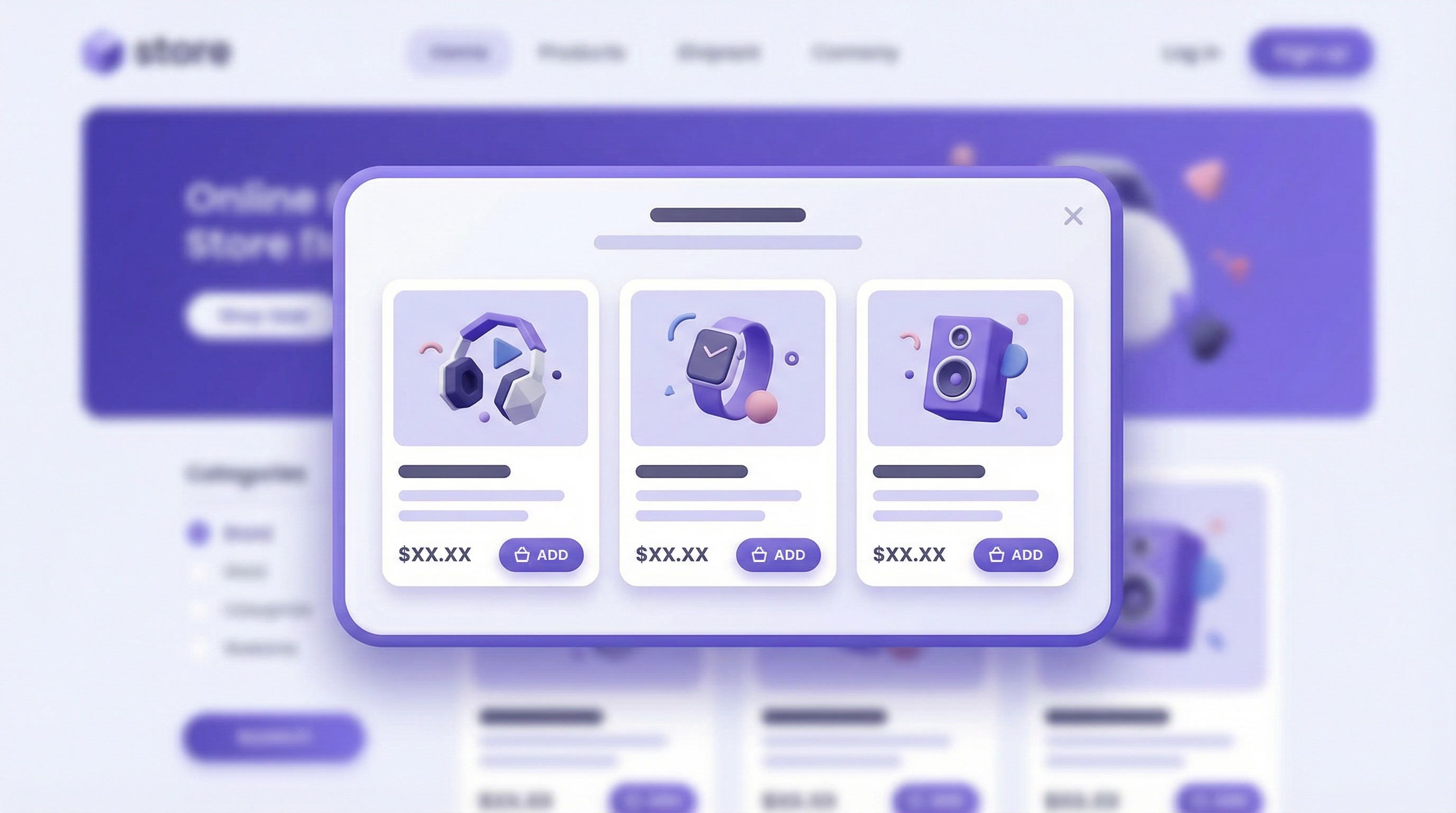
Layout 1: Grid
Best for: Multi-product displays, browsing enhancement
The classic e-commerce grid. Products arranged in 2-3 columns with thumbnails, titles, prices, and "Add" buttons.
┌──────────┬──────────┬──────────┐
│ Product  │ Product  │ Product  │
│  Image   │  Image   │  Image   │
│  Title   │  Title   │  Title   │
│  $29.99  │  $39.99  │  $24.99  │
│  [Add]   │  [Add]   │  [Add]   │
└──────────┴──────────┴──────────┘
When to use:
- Showing 3-6 related products
- Desktop-first audiences
- When selection variety matters
- "Complete the look" bundles
Configuration tips:
- 3 products is ideal; 6 max before it feels overwhelming
- Enable multi-select for bundle building
- Show compare-at prices for perceived savings
Layout 2: Card (Horizontal List)
Best for: Compact sidebars, product page enhancements
Horizontal list with smaller thumbnails. Products stack vertically in a slim panel.
┌─────────────────────────┐
│ [Img] Product Title     │
│       $29.99    [Add]   │
├─────────────────────────┤
│ [Img] Product Title     │
│       $39.99    [Add]   │
├─────────────────────────┤
│ [Img] Product Title     │
│       $24.99    [Add]   │
└─────────────────────────┘
When to use:
- Slide-in side panels
- Adding products without leaving page context
- Mobile-friendly quick recommendations
- "Frequently bought together" displays
Configuration tips:
- Position as right-side slide-in
- 3-4 products maximum
- Works great with scroll-depth trigger
Layout 3: Carousel
Best for: Mobile-first experiences, product showcasing
One product at a time with swipe navigation. Peek of next/previous products visible.
      ←  ┌──────────────────┐  →
         │   Product Image   │
         │                   │
         │   Product Title   │
         │      $29.99       │
         │    [Add to Cart]  │
         └──────────────────┘
When to use:
- Mobile traffic (swipe is natural)
- When product images deserve attention
- Higher-priced items needing showcase
- 4+ products to display
Configuration tips:
- Enable haptic feedback for mobile
- Larger images than grid layout
- Auto-advance optional (every 4-5 seconds)
Layout 4: Featured + Grid
Best for: Hero product promotion with alternatives
First product displayed prominently as hero; remaining products in smaller grid below.
┌─────────────────────────────────┐
│         HERO PRODUCT            │
│      [Large Image]              │
│      Product Title              │
│         $49.99                  │
│       [Add to Cart]             │
├────────────┬────────────────────┤
│ [Product]  │  [Product]         │
│  $29.99    │   $24.99           │
└────────────┴────────────────────┘
When to use:
- Promoting a primary upsell with fallback options
- New product launches
- Premium product recommendations
- When you have a clear "best match"
Configuration tips:
- AI product selection finds the best hero match
- Enable compare-at price on hero for savings highlight
- 2-4 supporting products below
Layout 5: Stack
Best for: Interactive, fun browsing experiences
Overlapping cards like a deck. Click/tap to expand and explore each product.
    ┌─────────────┐
  ┌─────────────┐ │
┌─────────────┐ │ │
│  Product 1  │ │ │
│             │ │ │
│   $29.99    │ │ ┘
│   [Add]     │ ┘
└─────────────┘
When to use:
- Fashion and lifestyle brands
- Younger demographics
- When browsing/discovery is the goal
- Interactive brand experiences
Configuration tips:
- Enable haptic feedback for satisfying interactions
- 3-5 products works best
- Great for mobile engagement
Layout 6: Classic Modal
Best for: Single high-value product upsells
Traditional centered modal focused on one product. Clean, professional, and effective.
┌─────────────────────────────────┐
│              ✕                  │
│  ┌─────────┐                    │
│  │ Product │  Product Title     │
│  │  Image  │  ★★★★☆ (128)       │
│  │         │  $49.99 $69.99     │
│  └─────────┘                    │
│                                 │
│  • Premium quality materials    │
│  • Free express shipping        │
│  • 30-day guarantee             │
│                                 │
│       [Add to Cart]             │
│       No thanks                 │
└─────────────────────────────────┘
When to use:
- High-margin products worth featuring
- Warranty or protection plan upsells
- Gift wrapping or premium packaging
- When you want maximum focus on one item
Configuration tips:
- Show star ratings and review count
- List 3-4 product benefits/features
- Include compare-at price for savings
- Add secondary "No thanks" CTA
Layout 7: Minimal Slide-Up
Best for: Mobile-first, non-intrusive suggestions
Compact bottom sheet that slides up. Minimal footprint, easy dismiss.
─────────────────────────────────
│  [Img] Recommended for you    │
│        Product Title - $29.99 │
│              [Add]            │
─────────────────────────────────
When to use:
- Mobile-dominant traffic
- Quick, lightweight suggestions
- Post-add-to-cart cross-sells
- When full popups feel too aggressive
Configuration tips:
- Trigger on add-to-cart event
- Auto-dismiss after 8-10 seconds
- Single product focus
- Swipe-to-dismiss enabled
Layout 8: Premium Fullscreen
Best for: High-value products, immersive experiences
Full-page takeover with large imagery. Premium feel for premium products.
┌─────────────────────────────────────────┐
│                                    [✕]  │
│                                         │
│         [Large Hero Image]              │
│                                         │
│         Exclusive Offer                 │
│                                         │
│    "Upgrade your experience with        │
│     our premium selection"              │
│                                         │
│         $149.99  $199.99                │
│     ─────────────────────               │
│         SAVE 25%                        │
│                                         │
│    🔥 Limited time - 3 left in stock!   │
│                                         │
│       [Claim This Deal]                 │
│        Maybe later                      │
└─────────────────────────────────────────┘
When to use:
- Premium/luxury products
- Limited edition releases
- High-value bundle offers
- When the moment justifies interruption
Configuration tips:
- Trigger on exit intent only
- Show once per session maximum
- Include urgency message (stock count)
- Full-screen on mobile enabled
Layout 9: Bundle Deal
Best for: Multi-product packages, combined savings
Multiple products shown as a bundle with combined discount.
┌─────────────────────────────────────────┐
│        Complete Bundle Deal             │
│        Save 20% when you buy together   │
├───────────┬───────────┬─────────────────┤
│ [Product] │ [Product] │ [Product]       │
│  $29.99   │  $24.99   │  $34.99         │
│    ☑️     │    ☑️     │    ☐            │
├───────────┴───────────┴─────────────────┤
│  Selected: 2 items                      │
│  Bundle Price: $43.99 (was $54.98)      │
│  You Save: $10.99 (20%)                 │
│                                         │
│      [Add Bundle to Cart]               │
└─────────────────────────────────────────┘
When to use:
- Complementary product sets
- "Frequently bought together"
- Starter kits or collections
- Accessory bundles
Configuration tips:
- Enable multi-select (checkbox per product)
- Show dynamic savings calculation
- Tiered discounts (2 items = 10%, 3 items = 20%)
- Pre-select recommended items
Layout 10: Countdown Urgency
Best for: Time-limited offers, creating FOMO
Single product with live countdown timer. Maximum urgency.
┌─────────────────────────────────────────┐
│              ⏰ Offer expires in         │
│                 04:32                   │
│  ┌─────────┐                            │
│  │ Product │  Product Title             │
│  │  Image  │                            │
│  │         │  $37.50  $50.00            │
│  └─────────┘  SAVE 25%                  │
│                                         │
│  🔥 47 people viewing right now         │
│                                         │
│      [Claim This Deal Now]              │
│         No thanks                       │
└─────────────────────────────────────────┘
When to use:
- Exit intent recovery
- Flash sale promotions
- Limited inventory items
- When urgency is appropriate
Configuration tips:
- Set countdown (5-10 minutes works well)
- Show social proof (viewers count)
- Exit intent trigger primary
- Once per session frequency
Layout comparison summary
| Layout | Products | Best Trigger | Device | Urgency |
|---|---|---|---|---|
| Grid | 3-6 | Browse, Scroll | Desktop | Low |
| Card | 2-4 | Page view, Scroll | Both | Low |
| Carousel | 3-8 | Browse | Mobile | Low |
| Featured | 3-5 | AI match | Both | Medium |
| Stack | 3-5 | Browse | Mobile | Low |
| Classic | 1 | Add-to-cart | Both | Medium |
| Minimal Slide-Up | 1 | Add-to-cart | Mobile | Low |
| Premium Fullscreen | 1 | Exit intent | Both | High |
| Bundle Deal | 2-4 | Cart page | Both | Medium |
| Countdown Urgency | 1 | Exit intent | Both | High |
When to show upsell popups: trigger strategies
The when matters as much as the what. Here are the most effective triggers:
Add-to-cart trigger
Show upsell immediately after customer adds a product. They're in buying mode—capitalize on it.
Best layouts: Classic Modal, Minimal Slide-Up, Bundle Deal
Product page scroll
Trigger after 60% scroll depth on product pages. They've read details and are engaged.
Best layouts: Card, Carousel, Featured
Exit intent
Catch leaving visitors with a compelling offer. Last chance to increase order value.
Best layouts: Premium Fullscreen, Countdown Urgency
Cart page view
Show complementary products when they're reviewing their cart. Low friction add-ons.
Best layouts: Bundle Deal, Grid, Card
Time on page
After 15-30 seconds of browsing, introduce relevant suggestions.
Best layouts: Stack, Featured, Carousel
Setting up upsell popups with Revenue Boost
Step 1: Create an upsell campaign
Go to Campaigns → New Campaign → Product Upsell. Choose from pre-built recipes:
- Complete the Look: Fashion/lifestyle bundles
- Frequently Bought Together: Data-driven combinations
- Last Chance Upsell: Exit intent with countdown
- Product Page Cross-Sell: Browse enhancement
Or start with a template type:
- Classic Upsell: Single product modal
- Minimal Slide-Up: Mobile-first bottom sheet
- Premium Fullscreen: High-value takeover
- Countdown Urgency: Time-limited offers
Step 2: Configure product selection
Three methods available:
| Method | How It Works | Best For |
|---|---|---|
| AI | Revenue Boost selects based on viewed product, cart contents, and purchase patterns | Most stores (recommended) |
| Manual | You choose specific products to show | Promoting specific items |
| Collection | Products from a specific collection | Category-based upsells |
Step 3: Set layout and design
Choose your layout from the 10 options. Then customize:
- Max products: 1-6 depending on layout
- Show prices: Yes (always)
- Show compare-at price: Yes for savings emphasis
- Show ratings: Yes if you have reviews
- Multi-select: Enable for bundle building
Step 4: Configure triggers
Set when the popup appears:
- Trigger type: Add-to-cart, exit intent, scroll, time
- Pages: Product pages, collection pages, cart
- Frequency: Once per session, once per day
- Exclude: Checkout pages (always)
Step 5: Add bundle discounts (optional)
Enable discounts for upsell purchases:
- Simple discount: 10% off any added item
- Tiered discount: 10% for 1, 15% for 2, 20% for 3+
- Bundle discount: Fixed % when buying together
Upsell popup best practices
Do: Match product relevance
Irrelevant suggestions damage trust. Use AI selection or carefully curate products that genuinely complement what they're buying.
Do: Make adding frictionless
One-click add from the popup. No page reloads. Instant cart update with visual confirmation.
Do: Show savings prominently
If there's a discount, make it obvious. "Save 20%" or "$10 off" should be visible at a glance.
Don't: Upsell during checkout
Never interrupt the payment flow. Once they're entering payment details, let them finish. Upsells belong before checkout.
Don't: Show too many products
3-4 products is the sweet spot. More creates decision paralysis. Less feels limited.
Don't: Be too aggressive
One upsell popup per session is usually enough. More feels pushy and damages brand perception.
Measuring upsell popup success
Track these metrics:
| Metric | What It Measures | Target |
|---|---|---|
| View rate | Popup impressions / sessions | 15-30% |
| Click rate | Clicks / impressions | 10-25% |
| Add rate | Products added / clicks | 20-40% |
| AOV lift | Increase in average order value | 5-15% |
| Revenue per visitor | Additional revenue / visitors | Varies |
Revenue Boost includes built-in analytics to track all these metrics, including A/B testing to compare layouts.
FAQ: Upsell popups
How much can upsell popups increase AOV?
Typical lifts range from 5-15% depending on product relevance, discount offered, and timing. Some stores see 20%+ with well-optimized upsells.
Should I offer a discount on upsells?
Not always necessary. Relevance matters more than discounts. But for high-margin items, a small discount (5-10%) can significantly boost take rates.
Which layout works best?
It depends on your traffic and products. Generally:
- Mobile-heavy → Carousel or Minimal Slide-Up
- Desktop-heavy → Grid or Featured
- High-ticket → Classic Modal or Premium Fullscreen
A/B test to find what works for your audience.
Can upsells hurt conversion rate?
Poorly timed or irrelevant upsells can. That's why targeting matters. Don't show upsells to first-time visitors on their first page view. Wait for buying signals.
How do AI product recommendations work?
Revenue Boost analyzes the current product, cart contents, browse history, and purchase patterns from your store to suggest the most relevant products. It learns over time.
Get started with upsell popups
Upsell popups are the fastest path to higher AOV. Pick the right layout, trigger at the right moment, and show genuinely relevant products.
Here's your action plan:
- Install Revenue Boost on your Shopify store
- Start with Classic Modal or Carousel (most versatile)
- Enable AI product selection (or curate manually)
- Set add-to-cart trigger (highest intent moment)
- Exclude checkout pages (never interrupt payment)
- Monitor AOV and add rate for 2-4 weeks
- A/B test layouts to find your winner
Most stores can launch their first upsell popup in under 10 minutes. The AOV impact is typically visible within the first week.
Ready to boost your conversions?
Get started with Revenue Boost in 60 seconds.
Install on Shopify - Free